크롬 확장 기능은 HTML, CSS, JS를 포함할 수 있습니다. 하지만 우리는 닷넷 히어로지 않습니까. 이 스레드에서는 Blazor WebAssembly와 TypeScript로 크롬 확장 기능을 만들어보겠습니다.
환경
- 구글 크롬 최신 버전
- 리눅스
- .NET 9
- Node.js 22
- JetBrains Rider
- 만약 윈도우와 비주얼 스튜디오를 사용할 것이라면 ‘ASP.NET 및 웹 개발’, ‘Node.js 개발’ 워크로드를 설치하면 됩니다.
크롬 확장 기능은 HTML, CSS, JS를 포함할 수 있습니다. 하지만 우리는 닷넷 히어로지 않습니까. 이 스레드에서는 Blazor WebAssembly와 TypeScript로 크롬 확장 기능을 만들어보겠습니다.
‘Blazor WebAssembly Standalone App’ 프로젝트를 만듭니다. 샘플 페이지를 포함할 것이고, https는 사용하지 않습니다.
빌드하고 실행하면 아래와 같은 화면이 반겨줄 것입니다.
프로젝트가 위치한 곳에서 터미널을 열고 아래 명령을 입력합니다.
dotnet publish
publish한 폴더/wwwroot 폴더로 들어갑니다. ‘_framework’ 폴더의 이름를 'framework’로 바꿉니다. 크롬에서는 밑줄로 시작하는 이름이 예약되어 있기 때문입니다. 그런 다음 index.html, framework/blazor.webassembly.js 파일의 '_framework’를 'framework’로 바꿉니다.
아래와 같은 내용으로 manifest.json 파일을 작성합니다.
{
    "manifest_version": 3,
    "name": "A Blazor Extension",
    "version": "1.0",
    "description": "A sample extension",
    "content_security_policy": {
        "extension_pages": "script-src 'self' 'wasm-unsafe-eval'; object-src 'self'"
    },
    "icons": {
        "192": "icon-192.png"
    },
    "options_page": "index.html"
}
메뉴 - 확장 프로그램 - 확장 프로그램 관리로 들어갑니다. (또는 주소창에 chrome://extensions/)를 칩니다.) '개발자 모드’를 활성화하고 '압축해제된 확장 프로그램을 로드합니다.'를 누릅니다. wwwroot 폴더를 선택합니다. 이제 확장 프로그램이 추가되었습니다.
세부 정보로 들어가서 '확장 프로그램 옵션’으로 들어갑니다. 아래와 같은 화면이 반겨줄 것입니다.
아무것도 없다고 나오는데, 왼쪽에 버튼을 누르면 사이트가 잘 작동하는 것을 확인할 수 있습니다.
프로젝트의 wwwroot 폴더에 다음과 같은 내용의 manifest.json 파일을 만들어 줍니다. (아까와는 내용이 다릅니다.)
{
    "manifest_version": 3,
    "name": "A Blazor Extension",
    "version": "1.0",
    "description": "A sample extension",
    "content_security_policy": {
        "extension_pages": "script-src 'self' 'wasm-unsafe-eval'; object-src 'self'"
    },
    "icons": {
        "192": "icon-192.png"
    },
    "action": {
        "default_popup": "index.html",
        "default_icon": "icon-192.png"
    }
}
그런 다음 파일 속성에서 출력 디렉터리에 복사를 항상 복사로 설정합니다.
Home.razor의 맨 윗부분을 다음과 같이 수정합니다.
@page "/"
@page "/index.html"
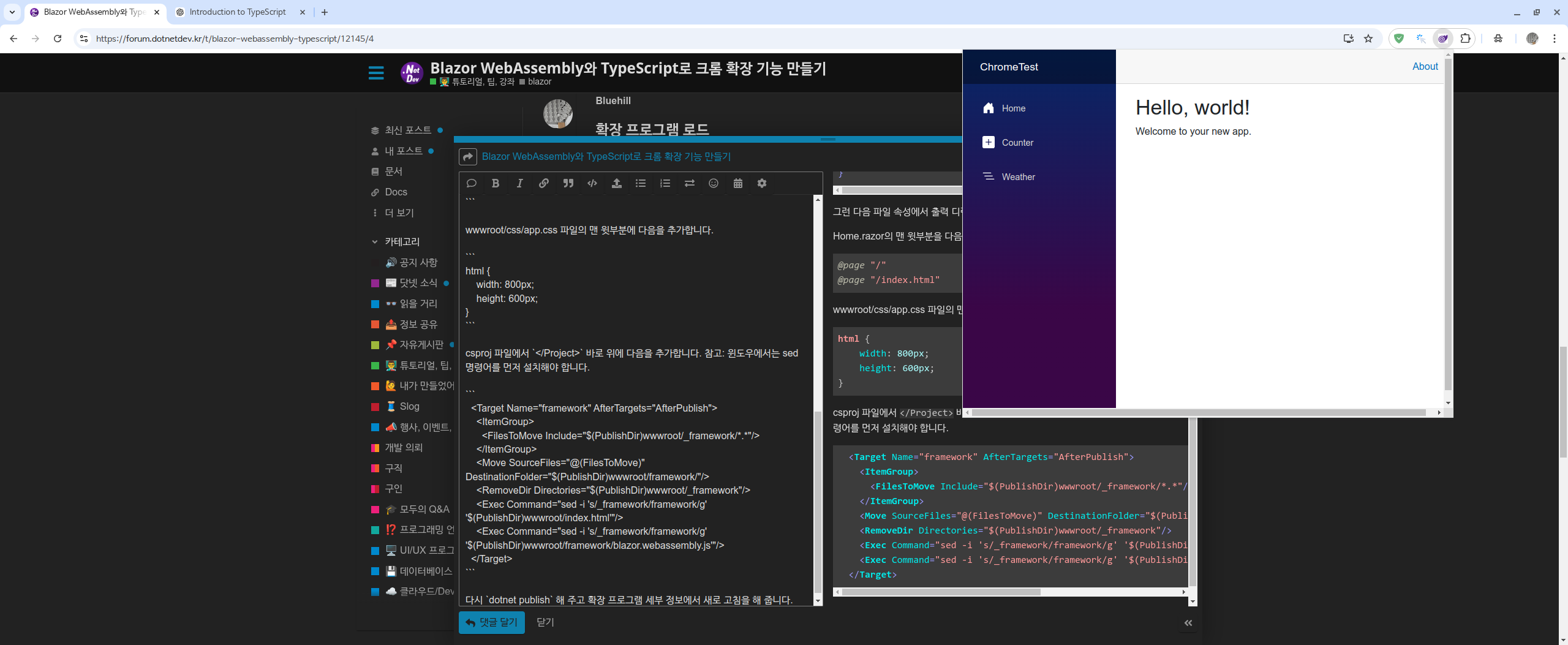
wwwroot/css/app.css 파일의 맨 윗부분에 다음을 추가합니다.
html {
    width: 800px;
    height: 600px;
}
csproj 파일에서 </Project> 바로 위에 다음을 추가합니다. 참고: 윈도우에서는 sed 명령어를 먼저 설치해야 합니다.
  <Target Name="framework" AfterTargets="AfterPublish">
    <ItemGroup>
      <FilesToMove Include="$(PublishDir)wwwroot/_framework/*.*"/>
    </ItemGroup>
    <Move SourceFiles="@(FilesToMove)" DestinationFolder="$(PublishDir)wwwroot/framework/"/>
    <RemoveDir Directories="$(PublishDir)wwwroot/_framework"/>
    <Exec Command="sed -i 's/_framework/framework/g' '$(PublishDir)wwwroot/index.html'"/>
    <Exec Command="sed -i 's/_framework/framework/g' '$(PublishDir)wwwroot/framework/blazor.webassembly.js'"/>
  </Target>
다시 dotnet publish 해 주고 확장 프로그램 세부 정보에서 새로 고침을 해 줍니다. 확장 프로그램 버튼을 누르면 아래와 같이 팝업이 뜹니다.
솔루션에 빈 웹 프로젝트를 하나 만듭니다. 역시 https는 사용하지 않습니다. 시작 프로젝트를 새로 만든 프로젝트로 설정합니다. Program.cs 파일을 아래 내용으로 바꿉니다.
var builder = WebApplication.CreateBuilder(args);
var app = builder.Build();

app.MapGet("/", () => Results.Text("""
                                   <html>
                                    <body>
                                        <p id="theparagraph">Hello, World!</p>
                                    </body>
                                   </html>
                                   """, "text/html"));

await app.RunAsync();
Blazor 프로젝트에 Microsoft.TypeScript.MSBuild NuGet 패키지를 추가합니다.
프로젝트에 TypeScript라는 폴더를 만듭니다. 그 폴더 안에 tsconfig.json 파일을 추가하고 아래 내용으로 작성합니다.
{
  "compilerOptions": {
    "target": "ESNext",
    "lib": ["DOM", "ESNext"],
    "strict": true,
    "sourceMap": true,
    "module": "ESNext",
    "outDir": "../wwwroot/scripts"
  }
}
Test.ts라는 파일도 만든 다음 아래 내용으로 작성합니다.
console.log('Hello!');
프로젝트를 빌드하여 제대로 컴파일이 되는지 확인합니다. 만약 Node.js를 시스템 설치가 아닌, nvm이나 fnm으로 설치했다면 다음과 같이 경로를 설정해야 할 수 있습니다.
  <Target Name="NodeExe" BeforeTargets="BeforeBuild">
    <PropertyGroup>
      <TscToolExe>/home/na1307/.local/share/fnm/aliases/default/bin/node</TscToolExe>
    </PropertyGroup>
  </Target>
TypeScript 폴더에서 터미널을 열고 다음 명령을 입력합니다.
npm i -D @types/chrome
Test.ts 파일의 이름을 content.ts로 바꾸고 아래 내용으로 바꿉니다.
chrome.runtime.onMessage.addListener((request, sender, sendResponse) => {
    console.log(request.action);
    sendResponse({ status: 'success' });
});
popup.ts라는 파일을 만들고 아래 내용을 입력합니다.
function sendMessage(): void {
    chrome.tabs.query({active: true, currentWindow: true}, async (tabs) => {
        const tab = tabs[0];

        if (tab === undefined || tab.id === undefined) {
            throw new Error("Tab not found");
        }

        const returned = await chrome.tabs.sendMessage(tab.id, {action: "hello"});

        alert(returned.status);
    });
}
Home.razor를 다음과 같이 변경합니다.
@page "/"
@page "/index.html"
@inject IJSRuntime JSRuntime

...

<p>
    <button class="btn btn-primary" @onclick="SendMessage">Click Me</button>
</p>

@code {
    private async Task SendMessage() {
        await JSRuntime.InvokeVoidAsync("sendMessage");
    }
}
index.html 파일의 </body> 바로 위에 아래 내용을 추가합니다.
<script src="scripts/popup.js"></script>
manifest.json 파일을 아래 내용으로 바꿉니다.
{
  "manifest_version": 3,
  "name": "A Blazor and TypeScript Extension",
  "version": "1.0",
  "description": "A sample extension",
  "permissions": [
    "scripting",
    "activeTab"
  ],
  "content_security_policy": {
    "extension_pages": "script-src 'self' 'wasm-unsafe-eval'; object-src 'self'"
  },
  "content_scripts": [
    {
      "matches": [
        "http://localhost:*/*"
      ],
      "js": [
        "scripts/content.js"
      ]
    }
  ],
  "icons": {
    "192": "icon-192.png"
  },
  "action": {
    "default_popup": "index.html",
    "default_icon": "icon-192.png"
  }
}
이제 dotnet publish 하고 확장 기능을 새로 고칩니다. 그리고 아까 만들었던 빈 웹 사이트를 실행합니다. localhost에 열릴 것입니다.
확장 팝업을 열고 Click Me 버튼을 누릅니다. 아래와 같이 알림 창과 콘솔 메시지가 나오면 성공입니다.
Home.razor 밑 부분을 다음과 같이 바꿉니다.
<p>
    <button class="btn btn-primary" @onclick="changeText">텍스트 바꾸기</button>
</p>

<p>
    <button class="btn btn-primary" @onclick="changeTextColor">텍스트 색상 바꾸기</button>
</p>

<p>
    <button class="btn btn-primary" @onclick="changeTextSize">텍스트 크기 바꾸기</button>
</p>

@code {

    private async Task changeText() {
        await JSRuntime.InvokeVoidAsync("changeText");
    }

    private async Task changeTextColor() {
        await JSRuntime.InvokeVoidAsync("changeTextColor");
    }

    private async Task changeTextSize() {
        await JSRuntime.InvokeVoidAsync("changeTextSize");
    }

}
popup.ts 파일을 다음 내용으로 바꿉니다.
interface SendData {
    action: string;
    target: string;
    value: string;
}

const target = "#theparagraph";

function sendMessage(data: SendData): void {
    chrome.tabs.query({active: true, currentWindow: true}, async (tabs) => {
        const tab = tabs[0];

        if (tab === undefined || tab.id === undefined) {
            throw new Error("Tab not found");
        }

        return await chrome.tabs.sendMessage(tab.id, data);
    });
}

function changeText(): void {
    sendMessage({action: "changeText", target: target, value: "Hello from Blazor!"});
}

function changeTextColor(): void {
    sendMessage({action: "changeTextColor", target: target, value: '#' + (Math.random() * 0xFFFFFF << 0).toString(16).padStart(6, '0')});
}

function changeTextSize(): void {
    sendMessage({action: "changeTextSize", target: target, value: (Math.random() * 100).toString() + 'pt'});
}
content.ts 파일을 다음 내용으로 바꿉니다.
interface SendData {
    action: string;
    target: string;
    value: string;
}

chrome.runtime.onMessage.addListener((request: SendData, sender, sendResponse) => {
    const target = document.querySelector(request.target) as HTMLElement;

    if (target === null || target === undefined) {
        throw new Error("target not found");
    }

    switch (request.action) {
        case "changeText":
            target.textContent = request.value;
            break;

        case "changeTextColor":
            target.style.color = request.value;
            break;

        case "changeTextSize":
            target.style.fontSize = request.value;
            break;
    }

    sendResponse({status: 'success'});
});
SendData 인터페이스를 중복 정의한 이유는 크롬이 import/export를 지원하지 않기 때문입니다.
이제 dotnet publish, 확장 기능 새로 고침, 프로젝트 실행을 합니다. 각 버튼을 누르면 아래와 같이 변하는 것을 확인할 수 있습니다.
우리는 이것으로 옵션 창, 팝업, 메시지, DOM 조작을 수행했습니다. 이제 기본적인 것들은 끝났습니다. 이제 훌륭한 확장 기능을 만들어가시길 바라겠습니다.
소스 코드는 이 링크에서 확인하실 수 있습니다.